
Once you have successfully tagged and scanned your products, you are ready to stock them in your microstore.
At this point, your fridge should be set up, with shelves, product rollers, and end caps in place (see photo below). If you still need to set up the interior of your fridge, watch this video for instructions.

NOTE: you should only use the digital key on your Stocking Device to stock the fridge. Do NOT use the physical key as your fridge will not recognize your products.
Tips:
- When you stock for the first time, stock a few products first. Then, close the fridge and check your "Stockup Log" to ensure each item was read properly.
- It is normal in your first few weeks to notice misreads (i.e. I stocked 4 salads but it only registered 3). This is almost always due to a tagging problem. When this happens:
- Review best stickering practices.
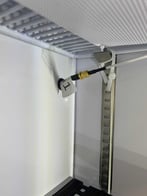
- Ensure the plugs of RFID sensors on the underside of each shelf are hand-tight:
- If you still experience issues, please submit a ticket and include photos of the tagged products on the shelf.
- If you have multiple microstores next to each other, stock one at a time.
Expiring Products
It is important to note that ‼️ if there are expired products in the fridge, the customer won't be charged for them if they remove those products ‼️. Therefore, it is extremely important to:
-
Make sure the expiration information on the product page is accurate every time you scan in a new batch of that product
-
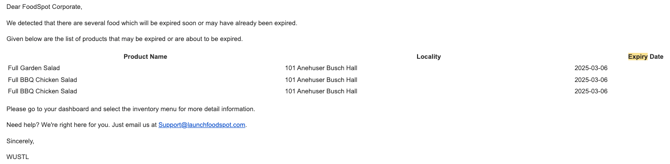
Stay on top of expiring inventory. When products are near expiry, you will receive an email notification:
 You can also view expiration status on the Inventory tab of your dashboard: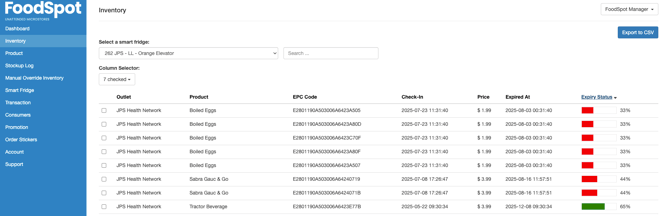


Up Next: Loss Prevention Strategies
Troubleshoot: If your fridge is not recognizing stocked products, see this article.