
Scanning your products assigns the RFID tags to the products they are applied to. This allows your microstore to recognize which items are stocked and purchased. Scanning products is quick and simple. The video below walks you through it:
- Turn on your Bluetooth scanner and plug the USB adaptor into your computer device.
- Click on the Product tab on your dashboard.
- Find the product you wish to assign stickers to and click "Assign stickers"
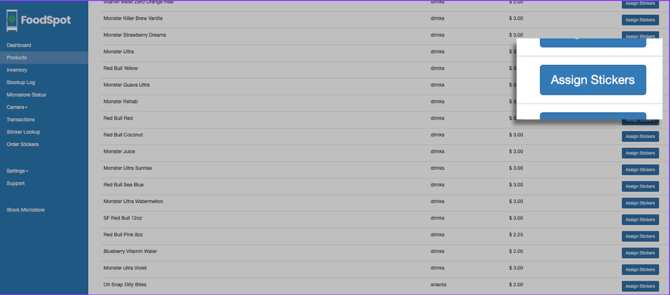
- The following window will appear:
- Use your cursor to click on the empty field so that it glows:
- Make sure only that product is on the table, so as to not accidentally assign other stickers to this product.
- Continuously click the orange button on your scanner as you have it 3"–6" over the products. It is okay if you scan the same sticker twice because our system will automatically merge duplicate codes.
- The EPC codes will populate into the box. When you have finished scanning all products of this type, click “Next”. You will see a total tally of all the codes assigned. Reconcile this with the number of items you intended to scan. If the number does not match, click "back" and rescan the products.
- Once all products have been scanned, hit "Save"
Up Next: Stocking Your Microstore