
You can easily add or remove dashboard access for your employees as your team evolves.
Add a user
- Go to Settings > Account. You will be taken to your outlet screen:

- Click “Add User” on the right-hand side.
- You will be taken to the user creation page. All fields except Card ID are required. For the password field, you need to include
- A capital letter i.e. "A"
- A special character i.e. "!"
- A number i.e. "3"
Role: for delivery staff, select “Staff”. For full access to the dashboard, select “Manager."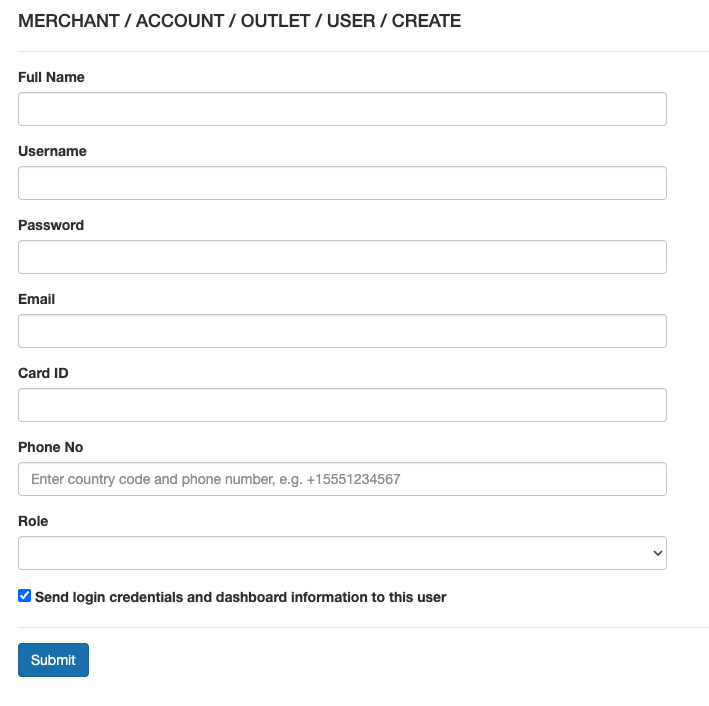
- As long as the checkbox to send credentials is checked, the person will receive an email with their dashboard credentials, along with a link to the launch course.
Remove a User
-
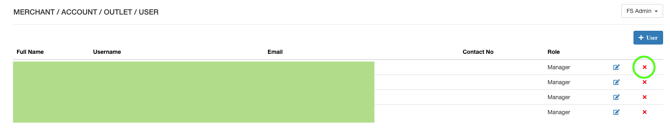
Click “View User” on the main Account screen:

-
Click the “x” button by the user you want to remove:
Keywords:
How do I add employees to my dashboard
Add users
What is the difference between manager and delivery role
How do I delete users
Remove users